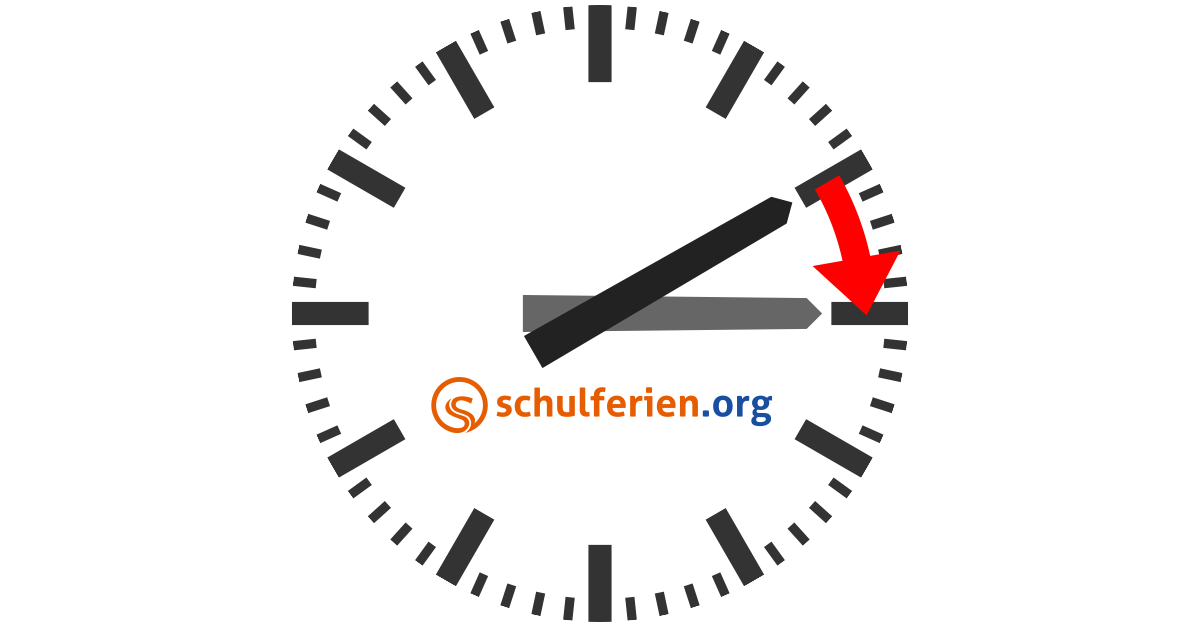
Uhrzeit Umstellung: Common Sync Issues with Fitbit, Cars & PCs
The bi-annual shift of Daylight Saving Time, known in German as Uhrzeit Umstellung, is a peculiar modern ritual. While designed to make better use of daylight, it often plunges our meticulously synchronized digital lives into temporary chaos. Far from being a mere human inconvenience, this seemingly simple act of "springing forward" or "falling back" frequently throws even the most advanced smart devices into disarray. From fitness trackers refusing to show the correct hour to car clocks stubbornly clinging to the wrong time, and even our personal computers experiencing glitches, the Uhrzeit Umstellung exposes surprising vulnerabilities in our interconnected tech landscape. But why do these issues persist, and more importantly, what can you do when your gadgets just can't get with the program?
The Digital Dilemma: Why Devices Struggle with Daylight Saving Time
At first glance, adjusting a clock by one hour seems trivial. However, for a device, it involves more than just a simple addition or subtraction. It requires a complex interplay of hardware, software, and external data sources. Here's a breakdown of why our tech often stumbles:
- Multiple Time Sources & Priorities: Devices can get their time from various sources: an internal Real-Time Clock (RTC), Network Time Protocol (NTP) servers via the internet, GPS signals, or even a paired smartphone. If these sources disagree or if the device prioritizes an incorrect source during the DST transition, sync issues arise.
- Firmware & Software Bugs: Despite rigorous testing, the specific algorithms designed to handle DST can contain bugs. A simple logical error in how a device interprets timezone rules or applies the offset can lead to persistent incorrect times.
- User Overrides & Conflicting Settings: Many devices offer both automatic and manual time settings. If a user has previously set the time manually or disabled automatic DST adjustments, the device may ignore network or GPS time, leading to discrepancies.
- Lack of Connectivity or Infrequent Syncing: Devices that aren't constantly connected to the internet (like some car systems) or those that only sync periodically (like fitness trackers) might miss the critical moment when the time change is broadcast, or might only update after a manual trigger.
- Hardware Limitations: Older or simpler devices might have less sophisticated internal clocks or less robust mechanisms for processing time zone data, making them more prone to errors.
Fitbit Follies: Tackling Time Troubles on Wearables
Wearable technology, like Fitbit, is designed for seamless integration into our lives, making time discrepancies particularly frustrating. Many users report that while their Fitbit successfully syncs activity, heart rate, and sleep data, the actual time displayed on the device remains incorrect after an Uhrzeit Umstellung.
This specific issue often points to a problem with how the Fitbit app or device firmware processes the time signal from the paired smartphone. The core data (steps, etc.) is exchanged, but the instruction to update the device's internal clock for DST might be missed, delayed, or misinterpreted.
Practical Tips for Fitbit Time Sync Issues:
- Force Multiple Syncs: Open the Fitbit app on your smartphone and try to manually trigger a sync several times. Sometimes, it just needs a few attempts to "catch" the correct time.
- Restart Your Fitbit: A simple restart of your Fitbit device can often resolve temporary glitches. Consult your specific model's manual for restart instructions.
- Restart Your Smartphone & App: Close the Fitbit app completely, then restart your smartphone. Reopen the app and attempt to sync again.
- Check Phone Time Settings: Ensure your smartphone itself is set to automatically adjust for Daylight Saving Time and that its timezone is correct. Fitbit usually mirrors your phone's time.
- Toggle Automatic Time: In your phone's settings, try temporarily turning off and then re-enabling "Set time automatically" or "Automatic time zone."
- Unpair and Re-pair (Last Resort): As a last resort, you might need to remove your Fitbit from the app and then set it up as a new device. Be aware this might cause a temporary loss of unsynced data.
- Check for Firmware Updates: Ensure your Fitbit device has the latest firmware. Bugs related to DST are often patched in updates.
Car Clock Catastrophes: Navigating Automotive Time Sync
Modern cars, often costing tens of thousands of Euros, are marvels of engineering. Yet, when the Uhrzeit Umstellung rolls around, many drivers find themselves manually wrestling with their infotainment system to correct the time. This disconnect between a vehicle's advanced capabilities and its inability to handle a simple time change is a frequent source of frustration.
The problem often stems from car systems relying on a combination of GPS time, internal clocks, and user-configurable settings. While GPS provides a highly accurate UTC (Coordinated Universal Time) signal, the car's software then needs to correctly apply the local timezone and DST offset. If a car's firmware has a bug in this DST application logic, or if the user has manually overridden automatic settings, the clock will remain incorrect.
Practical Tips for Car Clock Issues:
- Check Infotainment System Settings: Navigate through your car's display menu for "Time," "Date," or "Clock" settings. Look for an option to enable/disable "Daylight Saving Time" (often labeled "Summerzeit" in European models) or "Automatic Time Adjustment." Toggle this setting as needed, then confirm with "OK."
- Ensure Automatic Synchronization is Enabled: Some cars allow synchronization via GPS or mobile network. Verify this setting is active.
- Restart the Vehicle: As frustrating as it sounds, a full power cycle can sometimes resolve the issue. Turn off the engine, open and close the driver's door, lock the car, and wait 5-10 minutes for the systems to fully shut down. Then restart the car. This can force a system refresh.
- Be Patient for a Minute Change: Some systems only apply time changes at the next full minute mark. After adjusting settings, wait for 60 seconds to see if the time updates.
- Consult Your Owner's Manual: Specific steps vary widely between manufacturers and models. Your car's manual is the definitive guide.
- Consider a Dealer Visit: If repeated attempts fail, there might be a known software bug that requires a dealer update.
For more detailed car and Windows troubleshooting, check out our guide: Manual Uhrzeit Umstellung: Troubleshooting Car & Windows Time.
PC Predicaments: Windows and Other OS Time Conundrums
Personal computers, particularly those running Windows, generally handle the Uhrzeit Umstellung with ease thanks to network time synchronization (NTP). However, specific scenarios can lead to time discrepancies, most notably in dual-boot systems.
When multiple operating systems (e.g., Windows and Linux) share the same hardware, they can clash over how they manage the system's Real-Time Clock (RTC). Windows typically expects the RTC to store local time, while Linux and macOS usually treat the RTC as UTC. When both OS try to apply DST changes, especially if one is set to automatically adjust and the other isn't, conflicts arise, leading to the wrong time being displayed in one or both systems.
Practical Tips for PC Time Sync Issues:
- Windows GUI Method (Most Common):
- Go to "Start" > "Settings" > "Time & Language" (or "Date & Time" in older versions).
- On the "Date & time" tab, ensure "Set time automatically" and "Set time zone automatically" are both turned On. This is the standard and most reliable method for modern Windows versions.
- If issues persist, try toggling "Set time automatically" off and then back on.
- Addressing Dual-Boot Conflicts:
- Choose a Master: Decide which operating system will handle the automatic DST adjustment. It's often easier to let Windows manage it automatically.
- Configure the Other OS: If Windows is handling it, configure your Linux distribution (or other OS) to use local time for the hardware clock instead of UTC. This typically involves a command-line adjustment (e.g.,
timedatectl set-local-rtc 1 --adjust-system-clockfor systemd-based Linux). - Disable Automatic DST on One OS: Alternatively, you can disable automatic DST adjustment on one of the operating systems if the conflict is severe.
- Advanced Registry Method (Windows - Use with Caution):
This method, typically for older Windows versions or very specific troubleshooting, disables Windows' automatic DST adjustment. It should generally NOT be needed on modern Windows with automatic time synchronization enabled, and incorrect Registry edits can cause system instability.
- Press
Win + R, typeregedit, and press Enter to open the Registry Editor. - Navigate to:
HKEY_LOCAL_MACHINE\SYSTEM\CurrentControlSet\Control\TimeZoneInformation - Look for a DWORD value named
DisableAutoDaylightTimeSet. - If it exists, double-click it and change its "Value data" to
1to disable automatic adjustment, or0to enable it. - If it doesn't exist, right-click in the right pane, select "New" > "DWORD (32-bit) Value," name it
DisableAutoDaylightTimeSet, and set its value to1. - Restart your computer for changes to take effect.
Note: Modifying the Registry incorrectly can severely damage your operating system. Only proceed if you are confident in your actions.
- Press
General Troubleshooting Tips & Best Practices
While specific devices have their quirks, a few universal strategies can help you navigate the Uhrzeit Umstellung with less stress:
- Verify System Settings: Always start by ensuring "Automatic time" and "Automatic timezone" settings are enabled on all your main devices (smartphones, PCs, and car systems if available).
- A Full Reboot is Often the Answer: For most electronic devices, a complete power cycle can clear temporary glitches and force a re-initialization of timekeeping functions.
- Check for Software and Firmware Updates: Manufacturers frequently release updates that fix known bugs, including those related to time synchronization. Keep your apps, operating systems, and device firmware up to date.
- Ensure Connectivity: For devices relying on network time (NTP), ensure they have a stable internet connection. For cars using GPS, make sure they have a clear view of the sky.
- Be Patient: Sometimes, changes don't take effect immediately. After adjusting a setting or performing a reboot, wait a minute or two for the system to process the change and update.
- Consult Community Forums: If you're encountering a persistent issue, chances are others have too. Check official product forums or online communities for model-specific solutions.
Conclusion: The Enduring Challenge of Uhrzeit Umstellung
The annual Uhrzeit Umstellung continues to be a surprisingly challenging event for our sophisticated technology. From Fitbit devices that stubbornly display the wrong hour to premium cars requiring manual intervention and PCs grappling with dual-boot time conflicts, these glitches highlight the intricate complexity of global timekeeping. While the world debates the future of Daylight Saving Time, users are left to troubleshoot their devices, often with a mix of frustration and bewildered amusement.
By understanding the common pitfalls and employing targeted troubleshooting steps, you can minimize the disruptions caused by the time change. Being proactive, ensuring your devices are up-to-date, and knowing where to check key settings will help keep your digital life running smoothly, even when the clocks don't. The persistence of these issues also prompts a larger question: Daylight Saving Time Glitches: Why Modern Tech Still Fails to handle such a basic concept gracefully.